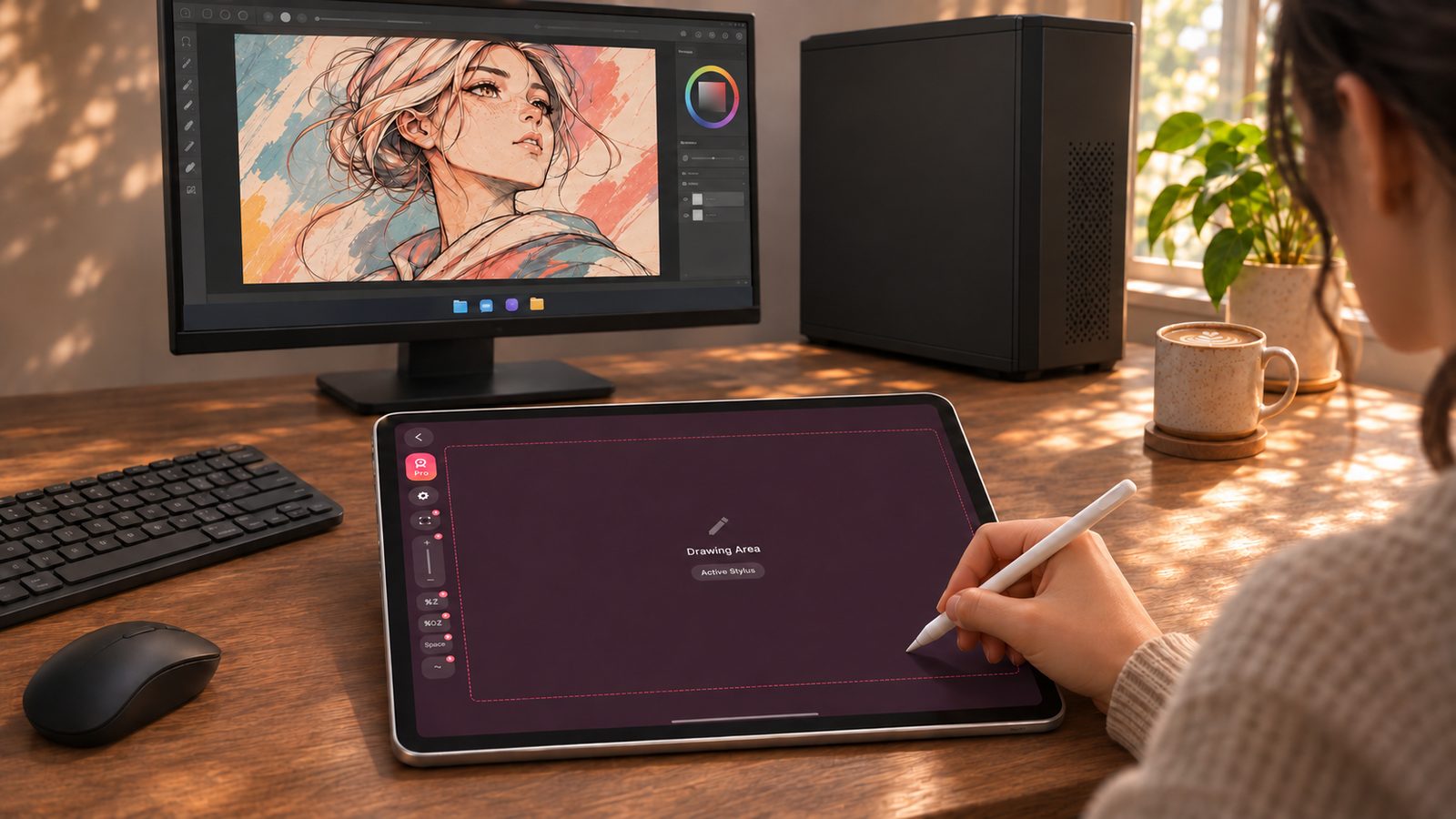
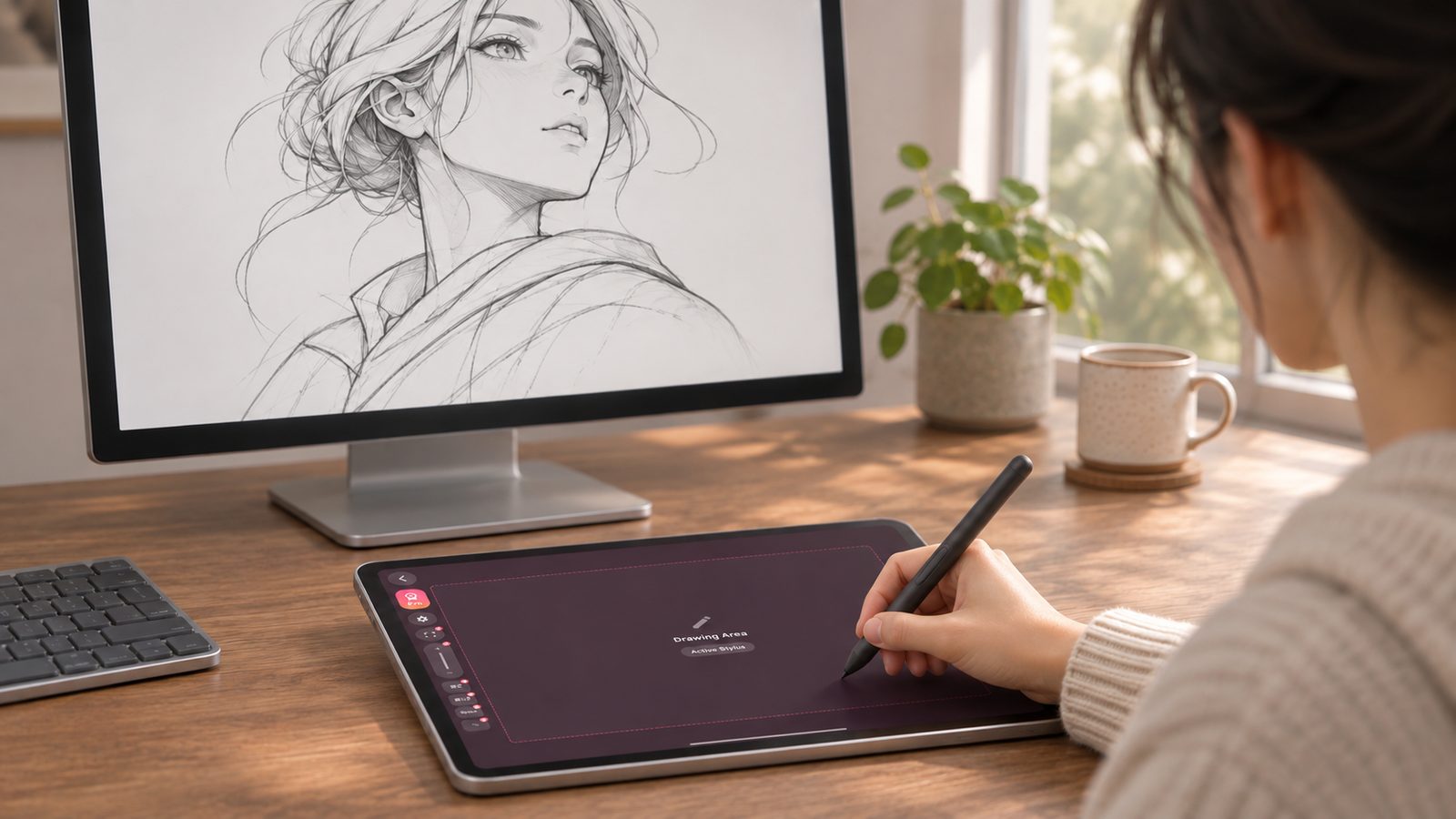
How to Use Your Phone or Tablet as an osu! Tablet
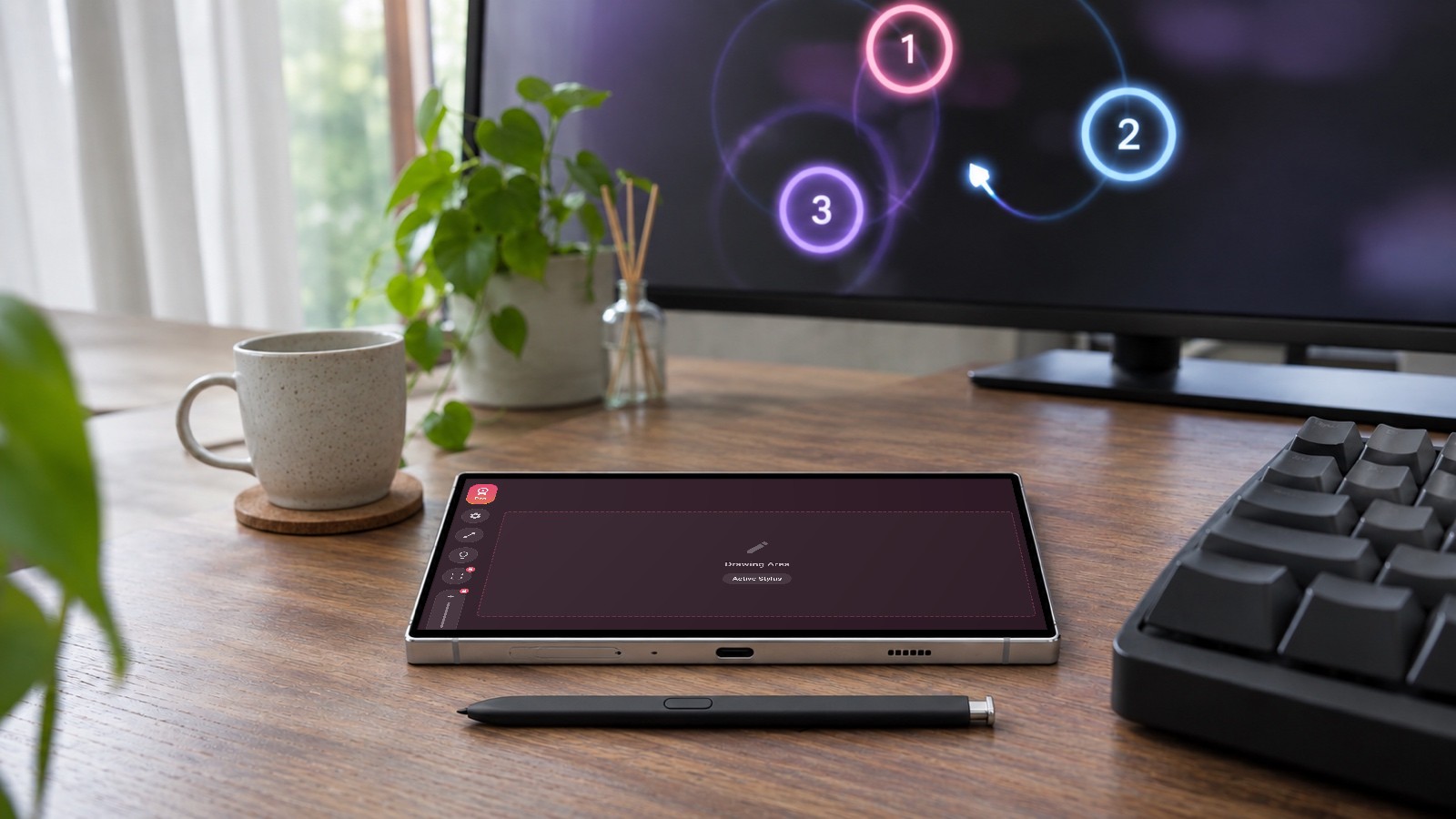
TL;DR — If you have a phone or tablet with a pen that hovers, such as a Galaxy device with an S Pen or an iPad with an Apple Pencil that supports hover, you do not need to buy a graphics tablet to try tablet aim in osu!. VirtualTablet turns it into an absolute-position tablet for osu! on Windows, macOS, and Linux. Without a hovering pen it still works, but it does not feel like a tablet, so check your pen first. A 120 Hz screen makes hover aim twice as fine as a 60 Hz one. Connect over USB for the steadiest input, set the pen input rate to 120 Hz for hover aim (120–240 Hz if you play with the pen on the screen), set your tablet area in millimeters, and on Windows turn on Gaming Mode to skip Windows Ink smoothing. Basic play is free; Gaming Mode is part of the paid plan, from $1.99 / month.
Why osu! Players Switch to a Tablet
Most top osu! players aim with a pen tablet, not a mouse. The reason is absolute positioning: each point on the tablet always maps to the same point on the screen. Your hand learns where a circle is, instead of learning how far to push a mouse. That makes jumps more consistent and long sessions easier on the wrist.
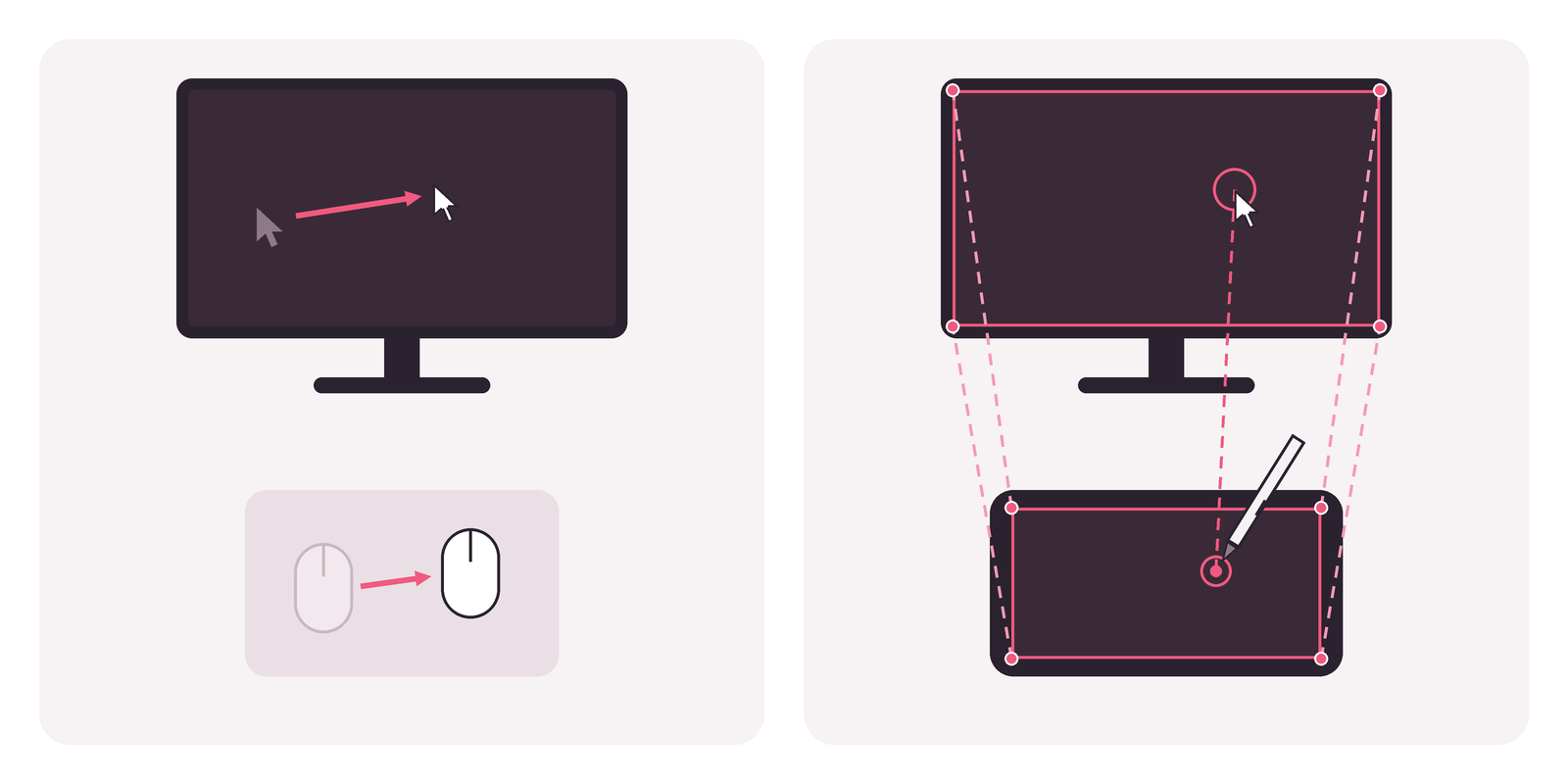
The usual problem is the first step. Buying a tablet just to find out whether you like tablet aim is a commitment, and many players already own a pen device that could do the job.
First, Check Your Pen
The single biggest factor is not your phone or your connection. It is whether your pen hovers.
A real osu! tablet tracks the pen while it floats just above the surface. Most tablet players aim this way: the cursor follows the hovering pen, and they click with Z / X on their computer’s keyboard. The pen rarely touches the surface at all.
A finger or a rubber-tip stylus cannot do that. The screen only sees it while it is touching the glass, so the cursor moves only during contact. You cannot glide to the next circle without dragging across the screen, and the hover-and-click style most tablet players use is not possible. It works, but it plays like a touch screen, not like a tablet.
| Your device | Hover | How it plays |
|---|---|---|
| Galaxy phone or tablet with an S Pen and a 120 Hz screen (such as the Galaxy S22 Ultra) | Yes, 120 Hz | Like a small tablet. The best fit |
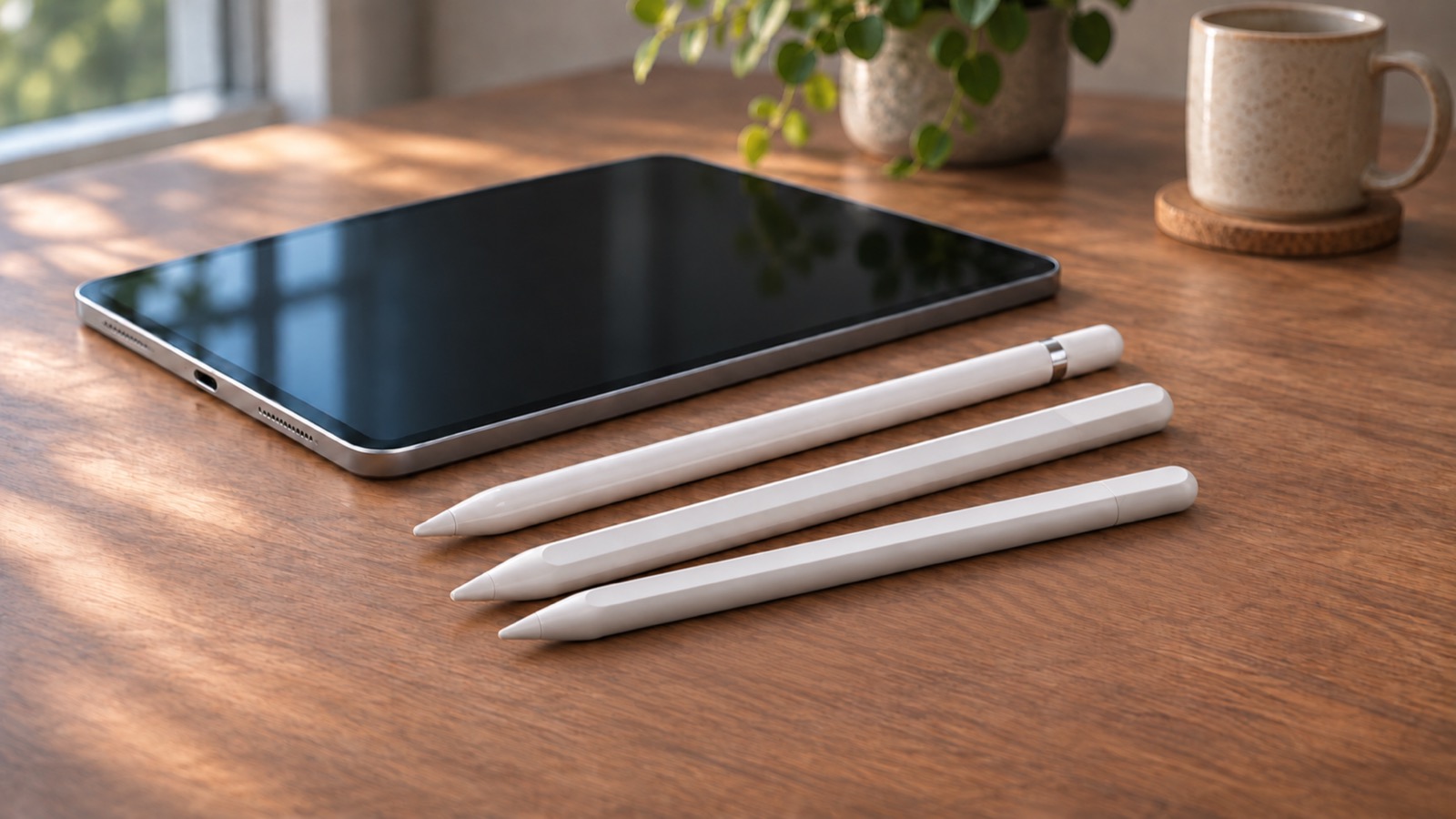
| iPad Pro with an Apple Pencil that hovers on it (ProMotion screen) | Yes, 120 Hz | Like a tablet. The best fit |
| iPad Air or iPad mini with an Apple Pencil that hovers on it | Yes, 60 Hz | Like a tablet, with coarser hover aim |
| Other Android device with an active pen that hovers | Yes, at its screen refresh rate | Like a tablet |
| iPad with an Apple Pencil that does not hover on that iPad | No | Playable, but the cursor moves only while the pen touches the glass |
| iPhone, or any device with a finger or rubber-tip stylus | No | Fine for a quick try. Not recommended for real play |
The hover rate in the table is how many times per second the device reports the hovering pen’s position. On most devices it matches the screen’s refresh rate, so a 120 Hz screen usually reports hover twice as often as a 60 Hz one. Since most osu! aim happens while hovering, the screen refresh rate is worth checking when you pick a device.
If your device has a 120 Hz screen, make sure it is actually running at 120 Hz. On a Galaxy device, set Settings > Display > Motion smoothness to Adaptive, not Standard. On an iPad Pro, make sure Limit Frame Rate under Settings > Accessibility > Motion is off. Either setting caps the screen, and with it hover, at 60 Hz.
Not sure whether your pen hovers? Hold the tip a few millimeters above the screen in a notes app and see whether a pointer appears. Our active vs passive stylus guide explains the test, and the Apple Pencil guide lists which iPads support hover with which Pencil.
What You Need
- A phone or tablet with a hovering pen, from the table above. A phone is often big enough: many players use a tablet area around 80 × 45 mm, which fits on most phone screens, so a Galaxy S Ultra with its S Pen is a good candidate.
- A computer running osu! on Windows, macOS, or Linux, with osu!(stable) or osu!(lazer).
- VirtualTablet on the phone or tablet, and VirtualTablet Server on the computer.
- A USB cable (recommended). Wi-Fi works too, but a cable gives the most consistent timing.
Setup in Five Steps
-
Install the apps. Get VirtualTablet on your device and VirtualTablet Server on your computer.
-
Connect. Plug in the USB cable and follow the USB connection guide for Android or iPhone/iPad. If you use Wi-Fi, keep the phone and computer on the same network, preferably 5 GHz.
-
Pick the monitor osu! runs on. In VirtualTablet Server, select the screen you play on so the tablet area maps to it.
-
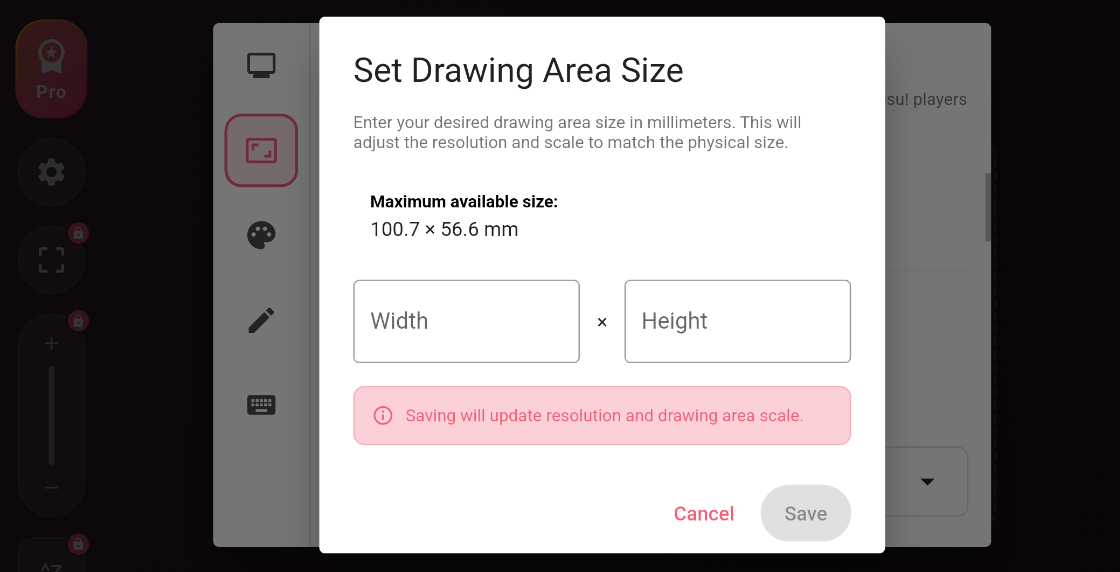
Set your tablet area. Open the tablet settings in the app, find osu! Expert Mode, tap Set Area Size, and enter the width and height in millimeters. If you are coming from a real tablet, use the same area you already have muscle memory for.
-
Configure osu!. osu!(stable) needs no changes. osu!(lazer) needs one mouse setting that depends on your operating system; the osu! setup guide lists it for Windows, macOS, and Linux.
Settings That Make the Biggest Difference
Use USB instead of Wi-Fi
Wi-Fi is usually fine, but a busy network can pause input for a moment, and in a rhythm game a short pause is a miss. A USB cable removes that variable. If you have to use Wi-Fi, a 5 GHz network with the computer close to the router helps.
Set the pen input rate for how you play
The pen input rate is how many pen positions per second VirtualTablet sends to your PC. Which setting helps depends on how you play, because the pen reports its position more often while it touches the screen than while it hovers.
| How you play | Pen | Most positions per second | Choose |
|---|---|---|---|
| Hover and click with Z / X (how most tablet players aim) | Above the screen | 120 on a 120 Hz screen, 60 on a 60 Hz screen | 120 Hz |
| Tap or drag with the pen on the screen | Touching the screen | 240 | 120–240 Hz |
Hover and Z / X: 120 Hz is the ceiling. A hovering pen is reported only once per screen refresh, so even the best devices (an iPad Pro or a Galaxy S22 Ultra) give at most 120 positions per second while you aim above the screen, and a 60 Hz screen gives 60. VirtualTablet passes every one of them to your PC. Choosing 240 Hz does not make hover faster, because the pen never reports hover that often.
Pen down: up to 240 Hz. Only while the tip touches the screen does an S Pen or an Apple Pencil measure its position 240 times per second or more. Apps on a phone or tablet normally see only one of those positions per screen frame and throw the rest away. VirtualTablet recovers every measured position and sends up to 240 per second, each one at the exact spot where the pen was, so small corrections in your aim reach osu! instead of being lost between frames.
The app starts at 60 Hz, which is the most even choice for most setups, but at 60 Hz a 120 Hz hover stream is cut in half. For osu!, open the tablet settings, find Pen input rate (report rate), and choose 120 Hz (Ultra) for hover aim. If you play with the pen on the screen, or switch between both styles, choose between 120 Hz (Ultra) and 240 Hz (Max). 240 Hz carries every pen-down position, but on some devices and PCs it arrives less evenly, so start at 240 Hz and drop to 120 Hz if the cursor feels uneven. Hover still arrives at its full 120 Hz with either setting.
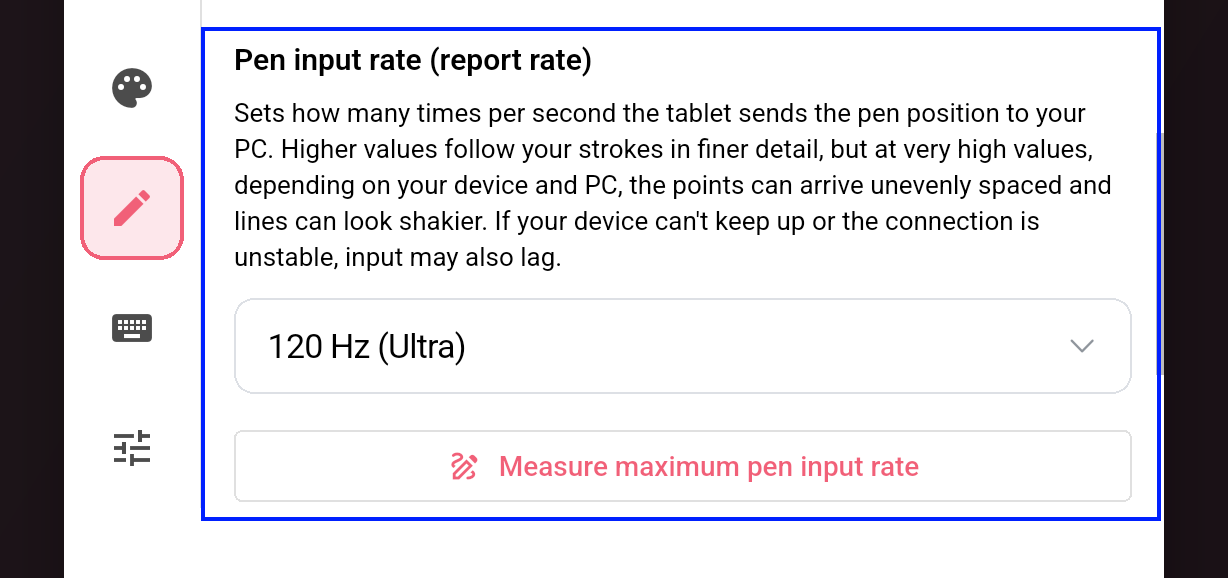
If the cursor starts to stutter or lag, step down one level, from 240 Hz to 120 Hz or from 120 Hz to 60 Hz. This usually happens on a busy Wi-Fi network, or with an older pen that cannot keep 240 positions per second evenly. Below the setting, Measure maximum pen input rate checks which rates your pen delivers evenly while it touches the screen, so you do not have to guess the pen-down rate.
On a Mac, osu! receives at most your monitor’s refresh rate, so a higher setting adds nothing there. Match the setting to your monitor, for example 60 Hz for a 60 Hz display.
Turn on Gaming Mode on Windows
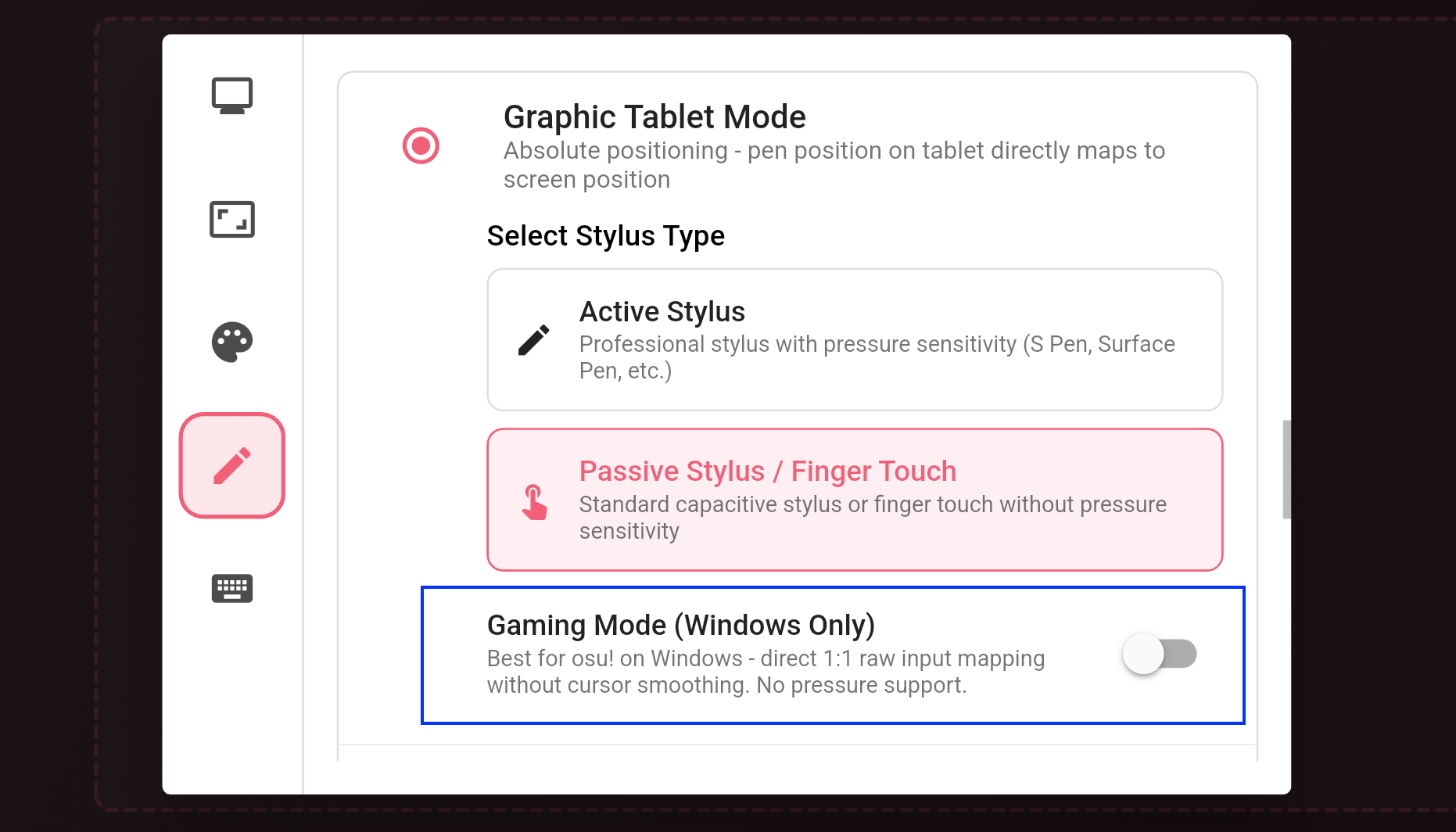
By default, Windows passes pen input through Windows Ink, which smooths movement for drawing apps. Smoothing feels nice in a painting app and adds delay in osu!. Gaming Mode sends the cursor position as an absolute mouse instead, which Windows Ink does not process, so osu! gets the position directly.
Turn it on in the tablet settings of the app on your phone or tablet, under Gaming Mode (Windows Only). Pen pressure is not available while it is on, which osu! does not use anyway; turn it off when you go back to drawing.
Keep your area consistent
Changing the area size every session undoes the main benefit of tablet aim. Pick a size, play with it for a week, and adjust in small steps. Expert Mode keeps the area in real millimeters, so it stays the same if you switch between devices with different screen sizes.
Click with your computer’s keyboard
With a hovering pen, aim without touching the screen and click by pressing Z / X (or your own keys) on the physical keyboard connected to your computer, the same keys osu! uses with a mouse or a real tablet. Nothing needs to be set up in VirtualTablet for this; it is the normal osu! keyboard input, not a VirtualTablet shortcut button.
Tapping the screen with the pen also clicks, but keys are faster for streams and easier on the screen. This is also why hover matters so much: without it, you have to touch the glass to aim at all.
Is a Phone as Good as a Real Tablet?
To be fair about it: no, not in every way. A dedicated osu! tablet still wins on a few points.
- Surface feel. Glass is slicker than a tablet surface. A matte screen protector helps.
- Hover. Every real tablet hovers; only some phones and tablets do. Even with an S Pen or an Apple Pencil, hover is usually reported only at the screen’s refresh rate (120 or 60 times per second), and the height at which the screen still tracks the pen can be lower than on a dedicated tablet.
- Consistency over Wi-Fi. A wired tablet never drops a packet. Over USB, VirtualTablet is close; over a crowded Wi-Fi network, it is not.
Where a pen device you already own wins is cost and convenience: you can find out whether tablet aim suits you before buying anything. If it does and you want more, you will know exactly what area and feel to shop for.
What It Costs
- Free: connect over Wi-Fi or USB, play with absolute positioning, and set your area in millimeters with osu! Expert Mode.
- Paid plan: adds Gaming Mode on Windows and other advanced features, for $1.99 / month, $11.99 / year, or $29.99 once.
FAQ
Can I play osu! with my phone as a tablet?
Yes, and it plays best with a pen that hovers, such as a Galaxy S Ultra with its S Pen. VirtualTablet makes the phone act as an absolute-position tablet for osu! on Windows, macOS, or Linux. Connect over USB for the most consistent input.
Do I need a pen that hovers?
For real play, yes. A hovering pen such as the S Pen, or an Apple Pencil on an iPad that supports hover, lets you aim without touching the screen and click with your computer’s keyboard, like a real tablet. A finger or a rubber-tip stylus works, but the cursor only moves while you are touching the screen.
Does the screen refresh rate matter?
Yes, for hover aim. A phone or tablet usually reports a hovering pen once per screen refresh, so a 120 Hz screen (iPad Pro, Galaxy S22 Ultra) sends 120 positions per second, and a 60 Hz screen (iPad Air, iPad mini) sends 60. While the pen touches the screen, an S Pen or Apple Pencil can send up to 240 per second on either.
Can I use an iPhone?
You can connect one, but iPhones do not support Apple Pencil, so you can only aim with a finger or a rubber-tip stylus, and the cursor moves only while you touch the screen. It is fine for trying tablet-style positioning, but not recommended for real play.
Does it work with osu!(lazer)?
Yes. osu!(lazer) needs one mouse setting that depends on your operating system. The osu! setup guide covers Windows, macOS, and Linux.
Does it work on Linux?
Yes. On Linux, run osu!(lazer) in Borderless mode; exclusive fullscreen locks the pointer. The osu! setup guide also covers a known osu!(lazer) input bug on some Linux desktops and its workaround.
What tablet area should I use?
If you have played on a tablet before, use the same area. If not, around 80 × 45 mm is a common starting point; smaller areas mean less hand movement but need more precision.
What is Gaming Mode?
A Windows-only setting that sends cursor positions as an absolute mouse, so Windows Ink does not smooth them. It is part of the paid plan.
Try It
osu! is a trademark of ppy Pty Ltd. This page is an independent guide. Pricing verified November 2026 and may change in your region.