Choosing a Pen Input Mode on Windows
VirtualTablet Server offers two ways to send pen input to Windows. Both modes support normal pen movement and pressure, but they enter the Windows input system at different points. This can affect compatibility with older drawing applications and how you select a monitor.
Quick Answer
Use Tablet Driver Mode for the widest application compatibility and the most established behavior. It is the default and is recommended for most users.
Try Pen Input API Mode when:
- NVIDIA DSR or DLDSR prevents the pen from reaching the full desktop
- You want to map the pen across multiple monitors
- You want to select the target monitor directly in VirtualTablet Server
- You cannot install or use the VirtualTablet HID driver
If pressure, hover, the eraser, or pen buttons do not work correctly in a specific application, switch back to Tablet Driver Mode.
Where to Find This Setting
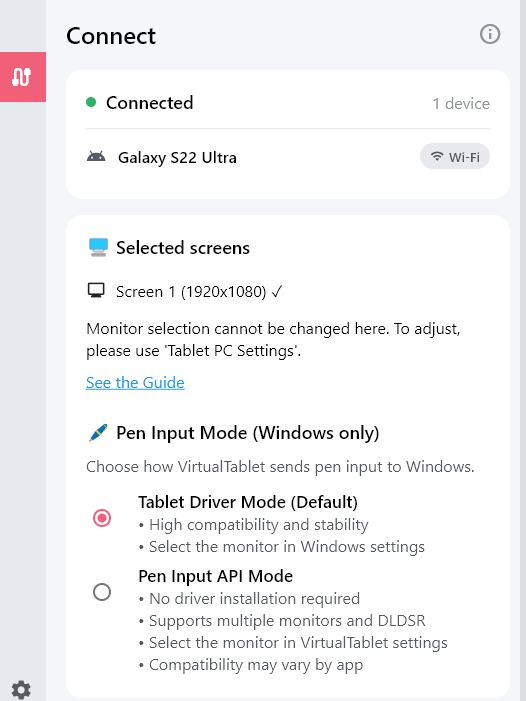
Open VirtualTablet Server and select the Connect tab. This setting appears only after a tablet is connected, so connect your tablet first. Once connected, the Pen Input Mode (Windows only) section is shown below Selected screens, and you can switch between the two modes there.
Mode Comparison
| Tablet Driver Mode | Pen Input API Mode | |
|---|---|---|
| Windows input path | Virtual HID pen device | Windows synthetic pen API |
| Recommended use | Best overall compatibility | Multi-monitor, DSR/DLDSR, or driver-free pen input |
| Driver required by this mode | Yes | No |
| Pressure, hover, tilt, and eraser | Supported | Supported |
| Monitor selection | Windows Tablet PC Settings | VirtualTablet Server |
| Multiple monitors as one drawing area | Not supported | Supported |
| NVIDIA DSR/DLDSR desktop coverage | May be limited | Supported |
| Minimum Windows version | Supported VirtualTablet Windows versions | Windows 10 version 1809 or later, including Windows 11 |
| Older or device-specific pen apps | More compatible | Compatibility may vary |
Tablet Driver Mode
Tablet Driver Mode sends pen reports through the VirtualTablet virtual HID driver. Windows sees it as an attached pen digitizer and converts the reports into Windows pen and ink input.
This mode is the safer choice for:
- General drawing and note-taking applications
- Older applications built around Windows tablet or stylus APIs
- Applications that expect an attached pen device
- Users who do not need DSR/DLDSR or combined multi-monitor mapping
When more than one monitor is connected, the target display is controlled by Windows Tablet PC Settings, not by the display selector in VirtualTablet Server. See Selecting a Monitor for setup instructions.
Pen Input API Mode
Pen Input API Mode uses the Windows synthetic pointer API to send a native
PT_PEN pointer. It provides Windows with pen position, pressure, hover,
barrel button, eraser, tilt, and rotation information without sending the
event through a virtual HID device.
Because coordinates are sent directly in virtual desktop pixels, this mode works around cases where a virtual HID pen cannot cover the complete desktop, including some NVIDIA DSR and DLDSR configurations.
This mode also lets you select:
- A specific monitor directly in VirtualTablet Server
- All displays as one combined drawing area when multiple monitors are connected
Pen Input API Mode requires Windows 10 version 1809 or later. It is also supported on Windows 11. The option is disabled when the required Windows API is unavailable.
Why Application Compatibility Can Differ
For modern applications, the two modes usually behave similarly. Windows
promotes HID pen reports into a unified pointer input system, while Pen Input
API Mode inserts a pen at that pointer layer. Applications using Windows Ink,
WM_POINTER, or other modern Windows pointer events should normally receive
pen position and pressure from either mode.
The difference becomes more important when an application reads input below or outside the modern pointer layer.
| Application input method | Tablet Driver Mode | Pen Input API Mode |
|---|---|---|
| Windows Ink or modern Windows pointer input | Expected to work | Expected to work |
| Basic mouse input | Basic pointing and clicking usually work | Basic pointing and clicking usually work |
| Older Windows tablet or stylus APIs | More likely to work | May vary by application |
| Raw HID input or pen-device detection | Available as a virtual HID device | No HID device is created |
| WinTab-only input | Not provided by VirtualTablet | Not provided by VirtualTablet |
| Applications that reject simulated input | Normally appears as device input | May be ignored |
A Note About WinTab
Neither mode installs a WinTab provider. If an application is configured to accept only WinTab input, VirtualTablet pressure may not be available.
When the application offers a choice between Windows Ink and WinTab, select Windows Ink before comparing the two VirtualTablet pen input modes.
Older Windows Tablet APIs
Some older applications use Microsoft Ink, RealTimeStylus, raw HID input, or device-specific detection instead of the modern Windows pointer interface. Tablet Driver Mode is more compatible with these cases because it creates a virtual pen digitizer. Pen Input API Mode creates pen pointer events but does not create the same HID device or tablet context.
Which Mode Should You Choose?
Keep Tablet Driver Mode when:
- Everything already works correctly
- You need the broadest compatibility with drawing applications
- You use older pen or tablet software
- Your application detects or selects a specific tablet device
Try Pen Input API Mode when:
- The pen reaches only part of a DSR or DLDSR desktop
- You want one tablet area to span multiple monitors
- You prefer to select a monitor inside VirtualTablet Server
- The VirtualTablet HID driver cannot be installed or started
Switch back to Tablet Driver Mode when:
- An application does not detect pen input
- Pressure, hover, tilt, buttons, or the eraser are missing
- The application responds only as if a mouse were connected
- Input works on the Windows desktop but not inside a particular application
Changing the mode is a compatibility setting, so it is safe to try both modes with the application you use for drawing.
Frequently Asked Questions
Does Pen Input API Mode still use Windows Ink?
It sends a native Windows pen pointer with pressure and other pen properties. Applications that consume modern Windows pen or Windows Ink input should normally handle it in the same part of the Windows input stack.
Is Pen Input API Mode better than Tablet Driver Mode?
Not in every situation. Pen Input API Mode has better virtual-desktop and DSR/DLDSR behavior, while Tablet Driver Mode provides wider compatibility with older and device-aware applications.
Do both modes support pressure sensitivity?
Yes. The selected drawing application must also support Windows pen pressure and be configured to use Windows Ink rather than WinTab-only input.
Why does the monitor selection interface change when I switch modes?
Tablet Driver Mode uses the monitor mapping stored in Windows Tablet PC Settings. Pen Input API Mode maps desktop coordinates itself, so VirtualTablet Server can offer individual monitors and an All displays option.