Troubleshooting
Having trouble with VirtualTablet? Find solutions to common connection and setup problems here.
Installation Failure
If you encounter installation failures with error codes like 0x80070643 as shown below, first verify that your account has administrator privileges.
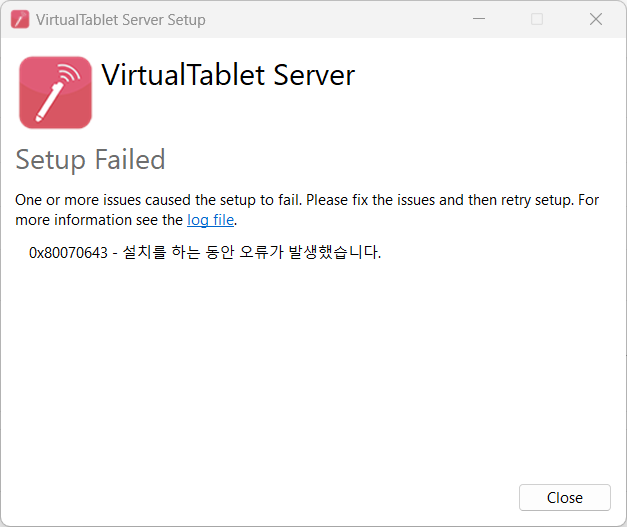
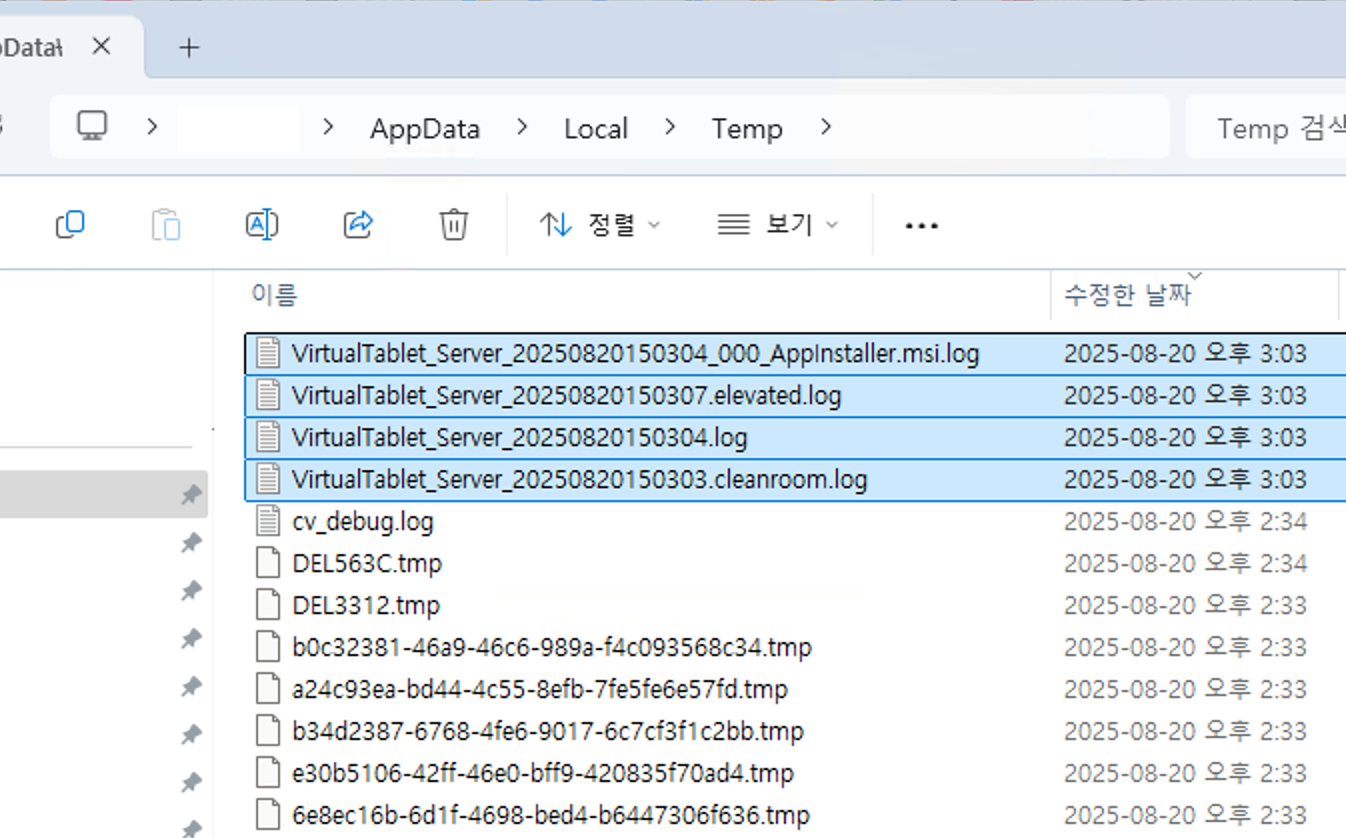
If the same issue occurs even when installing with an administrator account, please navigate to the following path and send all .log files starting with VirtualTablet_Server_ to [email protected]. We will help identify and resolve the issue as quickly as possible.
- Log file path:
C:\Users\[username]\AppData\Local\Temp
AppData is a hidden folder, so it may not be visible when you access the [username] folder. In this case, you can either check 'View' > 'Show' > 'Hidden items' in Explorer menu, or click on the empty space in the Explorer address bar and directly enter the path above.
Linux: the package stops halfway through installing
Install the .deb with apt, using the command on the download page. Double-clicking the file or
running dpkg -i resolves no dependencies at all, so the install stops before it finishes. If that already happened,
run sudo apt --fix-broken install to complete it.
Connection Issues
Cannot Connect with Your IP?
Common causes and solutions:
- Different networks: Ensure both devices are on the same WiFi
- Firewall blocking: Allow VirtualTablet through Windows Firewall
- Router isolation: Some routers prevent communication between devices
- VPN disabled: VPN can cause communication errors between devices when enabled
If you cannot connect even though your PC and tablet are on the same network, the issue is likely with your Windows Firewall settings.
Solution Steps:
- Open Windows Firewall settings
- Add
VirtualTablet Serverto the allowed applications list - Ensure both private and public network access are enabled
- Restart
VirtualTablet Serverand try connecting again
USB: the iPhone or iPad “Trust This Computer?” prompt was declined
If you tapped Don’t Trust when you first plugged the cable in, iOS remembers that answer and often stops asking, so the PC detects the device but is not allowed to talk to it. To bring the prompt back:
- Unlock the device, unplug the cable, wait a few seconds, and plug it back in
- If the prompt still doesn’t appear, make the device forget its trusted computers: Settings > General > Transfer or Reset iPhone (or iPad) > Reset > Reset Location & Privacy. On iOS 14 and earlier the path is Settings > General > Reset > Reset Location & Privacy
- Reconnect the cable with the device unlocked, and tap Trust when the prompt appears
Resetting Location & Privacy clears every computer your device has trusted and makes apps ask for location and privacy permissions again, but it leaves your photos, files, apps, and accounts untouched.
On Android the equivalent step is Revoke USB debugging authorizations in Developer options. See the USB connection guide for the full setup on both platforms.
Performance Issues
How to Minimize Cursor Delays
Experiencing lag or delays when using WiFi connection? Here are proven methods to improve performance:
1. Connect Your PC to the Router with an Ethernet Cable
- Plug your PC into the same router with a wired Ethernet cable, and leave only your tablet or phone on WiFi
- This removes one of the two wireless hops: data travels PC → router by cable, and only router → tablet goes over the air
- Your PC also stops competing for WiFi airtime, which noticeably reduces cursor delay and stuttering
- Both devices still need to be on the same router (same network) for the connection to work
2. Optimize Physical Distance
- Keep your PC, router, and tablet physically close together when using WiFi connection
- Reduce obstacles between devices (walls, furniture, electronic interference)
3. Try WiFi Tethering
- Create a direct connection between devices without going through a router
- Bypass network congestion and router limitations
4. Try USB Connection (Recommended)
- A direct USB connection via ADB eliminates WiFi network variables and provides the most consistent performance
- This method requires enabling Developer Options on your Android device. Once set up, it’s easy to use and offers stable, consistent performance.
Occasional drops or micro-stutters even with a strong signal? (Windows Wi-Fi roaming)
If the cursor briefly freezes while you draw, or the connection occasionally drops and reconnects even though your Wi-Fi signal is strong, Windows Wi-Fi roaming behavior may be the cause.
In environments with more than one access point (mesh Wi-Fi, offices, etc.), Windows periodically scans other channels to check whether a better access point is available. During each of these brief scans, data transfer pauses for a moment — causing micro-stutters — and if roaming is too aggressive, Windows may switch access points mid-session, briefly dropping the connection.
A PC that stays in one place rarely needs to roam, so lowering the Roaming Aggressiveness can greatly reduce these symptoms.
How to change it (Windows):
- Press
Win + Xand open Device Manager - Expand Network adapters, right-click your Wi-Fi adapter → Properties
- Select the Advanced tab
- In the property list, select Roaming Aggressiveness (or Roaming Sensitivity Level)
- Change the value to Lowest (or Disabled)
- Click OK, then reconnect VirtualTablet
Driver Issues
Do I need to install drivers?
- Windows: No driver is needed for the default Pen Input API Mode. Only Tablet Driver Mode uses the VirtualTablet HID driver, and VirtualTablet Server installs it for you when you switch to that mode
- Mac: No additional drivers needed
- Linux: No additional drivers needed - pen input goes through the kernel’s built-in
uinputdevice, and the server package sets up access to it for you - USB connection: Requires ADB drivers on Windows
See Pen Input Modes to choose between the two Windows modes.
Install the HID Driver for Tablet Driver Mode (Windows only)
- Connect your tablet, then select Tablet Driver Mode on the Connect tab
- Click Install Driver and allow the administrator permission prompt
- When the installation finishes, click Restart App
You can also check, install, restart, or remove the driver under Settings > HID Driver.
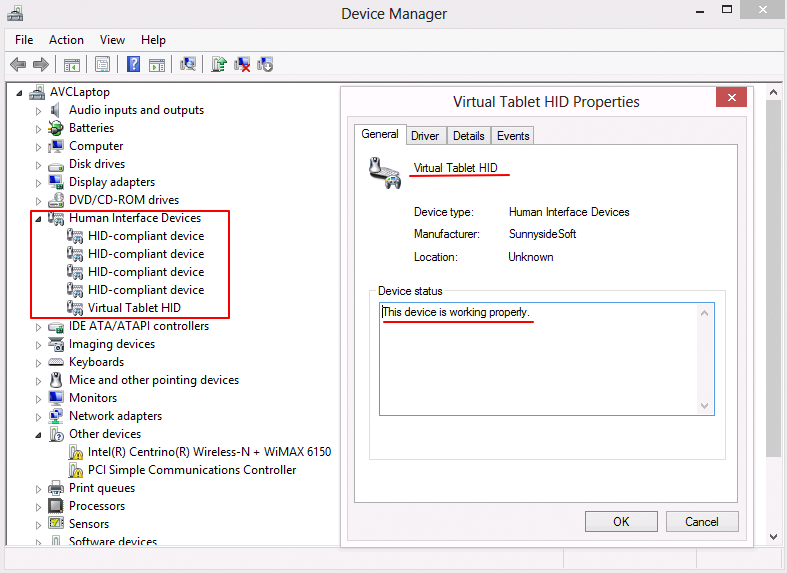
Verify HID Driver Installation (Windows only)
- Open Device Manager
- Look for Human Interface Devices
- Verify
VirtualTablet HIDdriver is present
Connection is successful, but cursor does not move?
If your stylus isn’t functioning properly, check these items in order:
-
Pen Input Mode
- On Windows, try Pen Input API Mode first. It needs no driver
- If your drawing app doesn’t detect the pen in that mode, switch to Tablet Driver Mode
-
Driver Installation (Tablet Driver Mode only)
- Click Check Driver Status under Settings > HID Driver
- If the driver is missing, click Install Driver and restart the app
- If the installation fails, antivirus software may be blocking the driver. Temporarily disable it and try again
-
Still not working
- Click Open log file path in the Settings menu and send us the log file
Linux: “Input Permission Not Granted”
VirtualTablet Server needs write access to /dev/uinput to move the cursor and send pen input. The .deb package
sets this up automatically, so the warning normally only appears after an AppImage install or a manual build.
- Install the bundled udev rule, or add your user to the
inputgroup and log back in - Click Re-check permission in VirtualTablet Server
FAQs
Can I use a tablet with finger touch?
VirtualTablet focuses on stylus input. Finger touch:
- Can be used but won’t have pressure sensitivity
- Does not support absolute cursor movement like graphic tablet (only relative movement possible)