Pen Pressure & Stylus Test
A free online pen tester for any stylus or drawing tablet. Hover over the dial for live pressure, tilt and twist readings, or open the canvas and draw with brushes that respond to each one. Nothing to install, and nothing leaves your browser.
Fills this browser tab. Press Esc to come back.
Safari on Mac doesn't pass pen pressure, tilt or twist to web pages, so they won't show here. Open this page in Chrome or Edge to test your pen.
Hover or draw here with your pen
How to test your pen
- Hover the pen over the dial above without touching the screen. The needle should follow the way the pen leans, and Input should read Pen.
- Select Open drawing canvas. The canvas fills this browser tab so nothing gets in the way of your strokes.
- Draw a few strokes from very light to very heavy with the Pressure brush. The line should go from hairline to full width.
- Switch to the Tilt brush and draw while leaning the pen in different directions. The shading should stretch toward the lean.
- Switch to the Twist brush and turn the pen around its barrel as you draw. The flat nib should rotate with it.
- Check Reported this session in the side panel. Every feature your pen sent to the browser shows as Detected, so you can see at a glance what works and what doesn’t.
Everything runs locally in your browser. Your strokes and readings are never uploaded.
What the readings mean
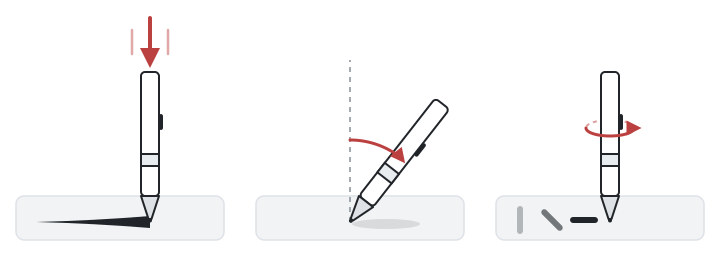
PressureHow hard the tip presses. More pressure makes a thicker or darker line.
TiltHow far the pen leans away from upright, and in which direction.
TwistHow far the pen is turned around its own barrel, like twisting a flat marker.
- Pressure goes from 0 (no contact) to 1 (full force), whatever the pen’s level count. A pen with 4,096 or 8,192 pressure levels still reads 0 to 1 here, just in finer steps. A value stuck at exactly 0.5 while drawing means the browser is not receiving pressure, so it falls back to a default.
- Tilt X and Tilt Y show how far the pen leans left/right and toward/away from you, from −90° to 90°. Holding the pen upright reads close to 0°.
- Twist is the pen’s rotation around its own barrel, from 0° to 359°. Only a few pens measure it, such as the Wacom Art Pen and Apple Pencil Pro.
- Browser rate is how many pen samples per second this browser receives while the pen moves. It can read lower than the input rate your pen or app actually sends: some browsers, such as Chrome on macOS, get at most one sample per display frame, so 240 Hz sent can read as 60 or 120 here. Display below it shows your screen’s refresh rate for comparison.
- Hover, side button and eraser appear in the checklist when the pen reports them: hover while the tip is just above the screen, the side (barrel) button, and the eraser end on pens that have one.
Which pens support pressure, tilt and twist
| Pen | Pressure | Tilt | Twist |
|---|---|---|---|
| Apple Pencil Pro | O | O | O (barrel roll) |
| Apple Pencil (2nd generation) | O | O | X |
| Apple Pencil (1st generation) | O | O | X |
| Apple Pencil (USB-C) | X | O | X |
| Samsung S Pen | O | O (most Galaxy Tab S models) | X |
| SonarPen | O (in supported apps such as VirtualTablet) | X | X |
| Wacom Pro Pen 2, Pro Pen 3 | O | O | X |
| Wacom Art Pen, Art Pen 2 | O | O | O (barrel rotation) |
| Microsoft Surface Slim Pen 2 | O | O | X |
| Huion, XP-Pen | O | O (most current pens) | X |
A value only reaches this page if the driver or app in between passes it on, such as VirtualTablet for Apple Pencil and S Pen.
Troubleshooting
Pressure stays at 0.5 or 1
The browser is getting pen input without real pressure. On Windows with a Wacom tablet, open Wacom Tablet Properties and turn on Use Windows Ink: browsers read pen pressure through Windows Ink. With other brands, make sure the tablet driver is installed and running, then reload this page.
No pressure, tilt or twist in Safari on Mac
Safari on macOS doesn’t pass pen pressure, tilt or twist to web pages, so all three stay at their defaults even with a working pen. Open this page in Chrome or Edge on the same Mac to test your pen. Safari on iPad is different: it reports Apple Pencil pressure and tilt.
Tilt never changes
Lean the pen well past 20° and watch Tilt X and Tilt Y. If both stay at 0°, your pen or tablet may not measure tilt at all (see the table above), or the driver is not passing it to the browser.
Input shows Mouse instead of Pen
The pen is being reported as a mouse, so pressure and tilt are lost on the way. Update or reinstall the tablet driver, and on Windows check that Windows Ink is turned on. A mouse or touchpad always shows Mouse, which is expected.
Browser rate is lower than the rate I set
Browser rate can read lower than the input rate your pen or app actually sends. It counts the samples this browser receives, not the samples your pen or app sends, and browsers differ. Chrome on macOS receives at most one pen sample per display frame: 60 per second with a 60 Hz monitor connected, 120 on a 120 Hz display, so a tablet sending 240 Hz can read as 60 or 120 there. When the two match, the readout says the rate is capped by your display. Safari on Mac lets more samples through, but as mouse input without pressure or tilt. Drawing apps such as Krita read every pen sample, so the same pen can feel smoother there than in a browser.
Chrome on macOS can also read below your display’s refresh rate. An iPad with a 60 Hz screen, such as iPad Air, hands over its Apple Pencil samples once per screen frame, two or four at a time. macOS merges samples that arrive less than about a millisecond apart and keeps only the newest one, so with VirtualTablet a 120 Hz setting can read about 100 Hz in Chrome even on a 120 Hz Mac display. Your pen stays just as responsive, because the newest position is never the one dropped, and drawing apps such as Photoshop, Clip Studio Paint and Krita still receive every sample.
My pen works in drawing apps but not here
Drawing apps often use the driver’s own interface, while browsers use the operating system’s standard pen input. Turn on Windows Ink on Windows, and make sure the browser is up to date. Recent Chrome and Edge read pen pressure and tilt; Safari on Mac does not.
No drawing tablet? Use your iPad or Android tablet
If you already own a tablet with a stylus, such as an iPad with Apple Pencil or a Galaxy Tab with S Pen, you don’t need to buy a drawing tablet. VirtualTablet turns it into a pressure-sensitive drawing tablet for your Windows, Mac or Linux computer, so you can draw in Photoshop, Clip Studio Paint, Krita and other apps.
- VirtualTablet connects over Wi-Fi or USB, with a server app on your computer.
- VirtualTablet: Bluetooth connects over Bluetooth, like a wireless mouse.
- Compare the two apps to pick the one that fits your setup.
VirtualTablet also sends Apple Pencil Pro’s barrel roll to your computer as pen twist, so brushes that rotate with the pen work on the desktop too.
Once connected, open this page on your computer and draw on your tablet. The readings show the pressure, tilt and twist your tablet sends, and how many samples per second reach the browser.
Frequently asked questions
Is this pen test free and private?
Yes. The test is free, needs no sign-up, and runs entirely in your browser. Nothing you draw is uploaded.
Does it work with Wacom, XP-Pen and Huion tablets?
Yes. Connect the tablet, install its driver, and open this page in an up-to-date browser such as Chrome or Edge. On Windows, keep Windows Ink turned on so the browser receives pressure and tilt.
Can I test an Apple Pencil or S Pen?
Yes. Open this page in the tablet’s own browser to test the pen there. To use the pen as a drawing tablet for your computer and test it on the computer, connect it with VirtualTablet. Through VirtualTablet, Apple Pencil Pro’s barrel roll also shows up here as twist.
How many pressure levels does my pen have?
Pressure always reads from 0 to 1 here, whatever the hardware’s level count. Draw a slow stroke from light to heavy: smooth, gradual changes in the value and the line width mean the pen reports fine pressure steps.
Why does twist always read 0?
Most pens, including S Pen, Wacom Pro Pen and Apple Pencil models before Pro, don’t measure barrel rotation. Apple Pencil Pro does, but Safari on iPad doesn’t pass its barrel roll to web pages yet, so it reads 0 there. Connected to a computer through VirtualTablet, the same roll arrives as twist. Pens such as the Wacom Art Pen report twist directly.