How to Play osu! with VirtualTablet

Overview
osu! is a free-to-play rhythm game where you click circles, slide along paths, and spin spinners to the beat of
music. It’s one of the most popular rhythm games worldwide, with millions of beatmaps (songs) created by the
community. Players use either a mouse or graphics tablet for precise cursor control.
- Download osu!: osu.ppy.sh
Both VirtualTablet and VirtualTablet: Bluetooth officially support osu!. You can enjoy playing osu! with tablet precision using your mobile devices, without purchasing dedicated graphics tablet hardware.
Why Use a Tablet for osu!?
Tablets offer significant advantages for osu! players:
- Precision: Direct input with pixel-perfect accuracy for hitting circles and sliders
- Speed: Faster cursor movement and more natural hand motions compared to mouse
- Consistency: Absolute positioning means your cursor goes exactly where you tap
- Comfort: Reduced wrist strain during long play sessions
- Hover: Ability to hover and plan your next move
Professional osu! players overwhelmingly prefer tablets, and VirtualTablet lets you experience these benefits without investing in dedicated hardware.
osu!(stable)
If you’re using osu! stable, you’re all set! No configuration needed.
- Works perfectly with default settings
- Full support for multi-monitor setups
- Just launch osu! and start playing with VirtualTablet
osu!(lazer)
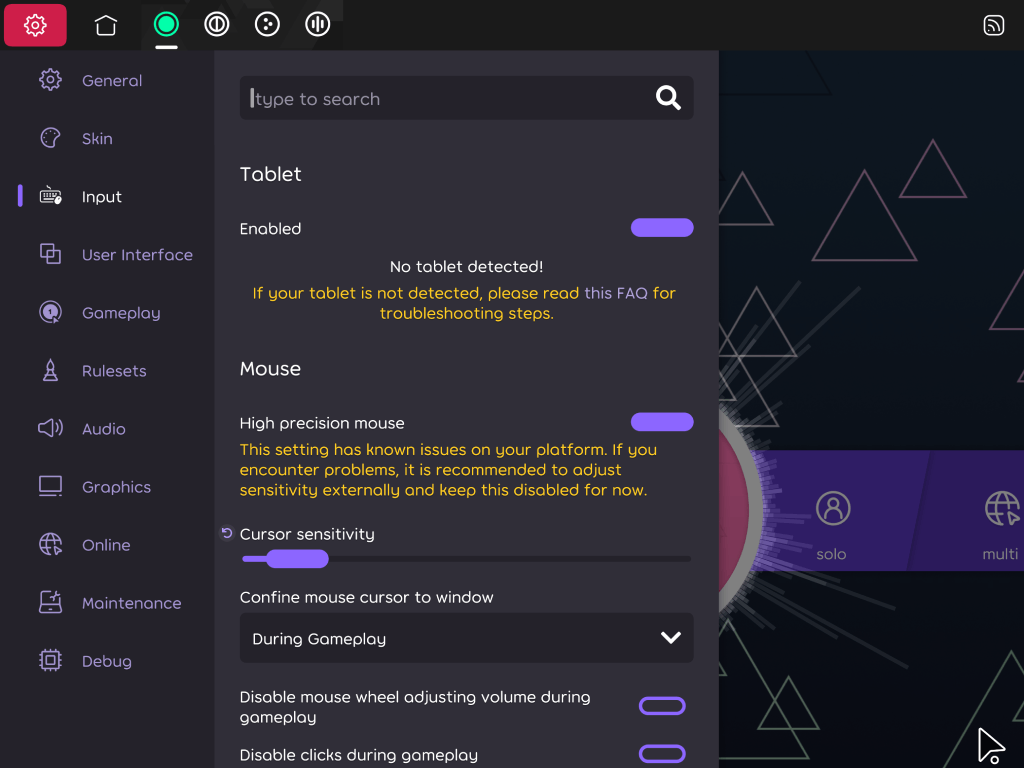
If you’re using osu!(lazer), you’ll need to adjust one setting to ensure VirtualTablet works correctly:
Windows Setup
- Open osu!(lazer)
- Navigate to Settings > Input > Mouse
- Enable “High precision mouse” (enabled by default)
macOS Setup
- Open osu!(lazer)
- Navigate to Settings > Input > Mouse
- Disable “High precision mouse”
Linux Setup
- Open osu!(lazer)
- Navigate to Settings > Input > Device: Mouse and enable “High precision mouse”
- Navigate to Settings > Graphics and set Screen mode to Borderless
Features for osu! Experts
Custom Tablet Area
Many experienced osu! players have a specific tablet area size they’ve mastered over time—commonly something like 80mm × 45mm. With osu! expert mode, you can set your drawing area to these exact dimensions in millimeters.
To enable this feature:
- Open the tablet settings menu
- Find osu! Expert Mode section and tap the Set Area Size button
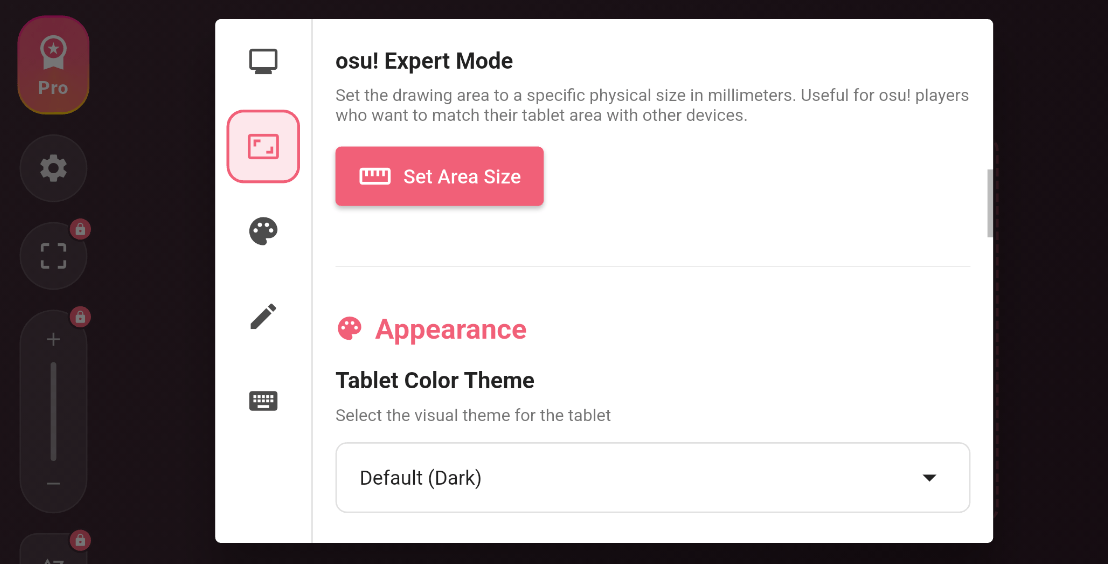
- Enter your preferred width and height in millimeters
- Save your settings
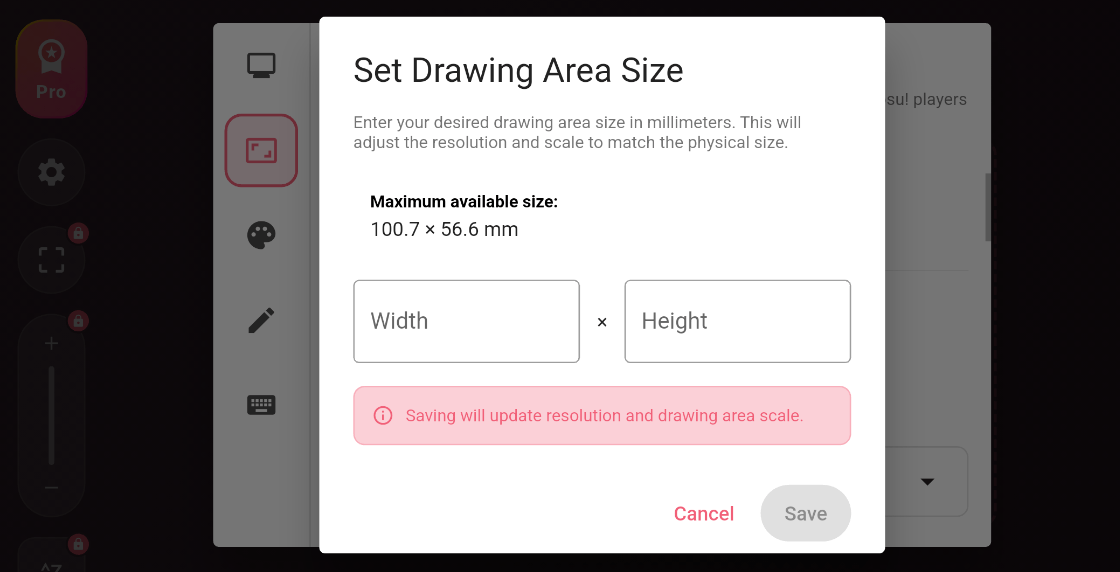
Your drawing area will now match your custom tablet size, letting you maintain the muscle memory you’ve built with your preferred dimensions.
Raw Input Mode (Windows only)
Many osu! players prefer raw input for the most responsive and accurate cursor control. By default, all input from tablet devices connected to Windows is processed and smoothed by Windows Ink. While this smoothing creates fluid cursor movement for drawing applications, it introduces latency that can negatively affect osu! gameplay.
VirtualTablet and VirtualTablet: Bluetooth both bypass this smoothing the same way: turn on Gaming Mode in the tablet settings of the app on your device. This mode uses an absolute mouse device to send cursor positions directly, taking advantage of the fact that Windows Ink doesn’t process absolute mouse inputs.
To turn it on:
- Open the tablet settings menu
- Scroll to Gaming Mode (Windows Only) and turn the toggle on
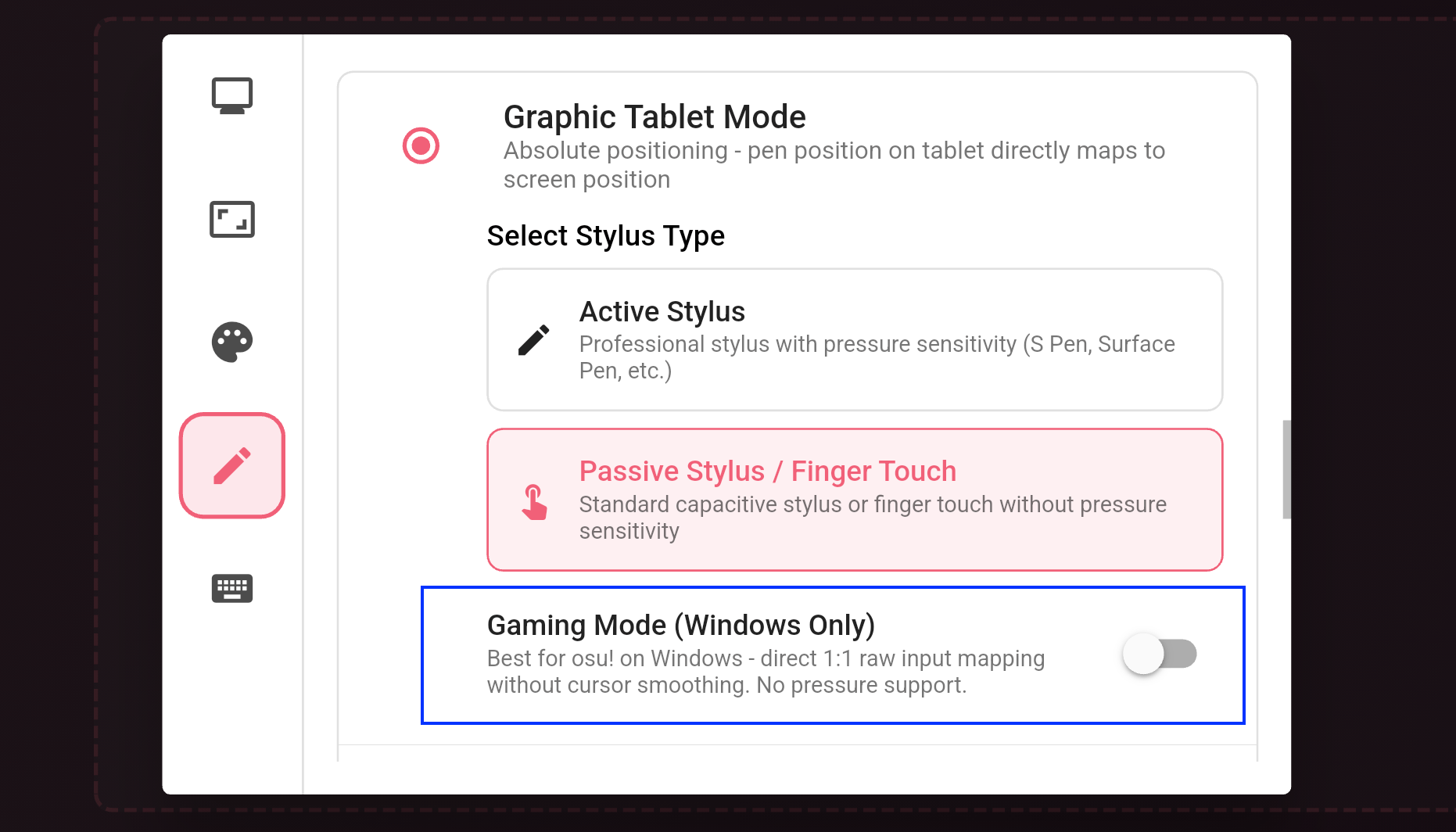
With Gaming Mode enabled, no additional configuration is needed in osu!. As a quick reminder:
- osu!(lazer): Keep “High precision mouse” enabled
- osu!(stable): No settings changes required