Pressure Sensitivity Setup for Adobe Products
Learn how to enable and configure pressure sensitivity for Adobe Creative Suite applications with VirtualTablet.
Adobe Photoshop
Configure pressure-sensitive brushes in Photoshop:
- Select the Brush Tool from the toolbar
- Open the Brush Panel (Window → Brush Settings)
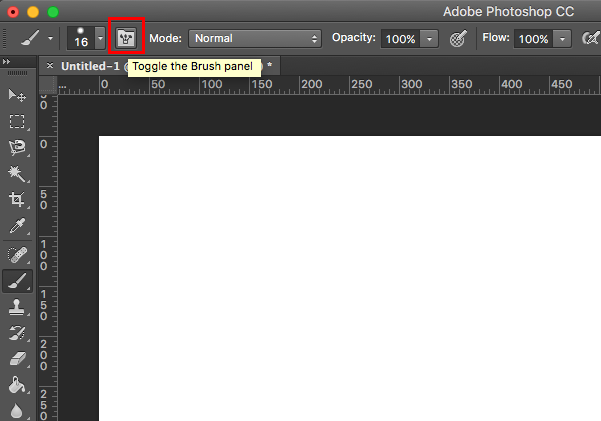
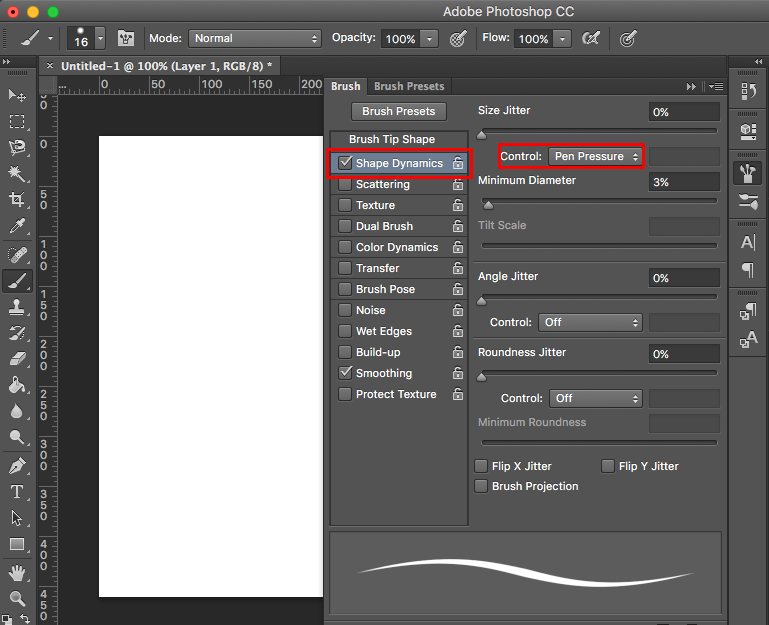
- Enable Shape Dynamics:
- Check “Shape Dynamics”
- Set Control to “Pen Pressure”
- Adjust size variation as desired
- Start drawing with pressure sensitivity!
Adobe Illustrator
Set up pressure-sensitive brushes in Illustrator:
- Select the Brush Tool from the toolbar
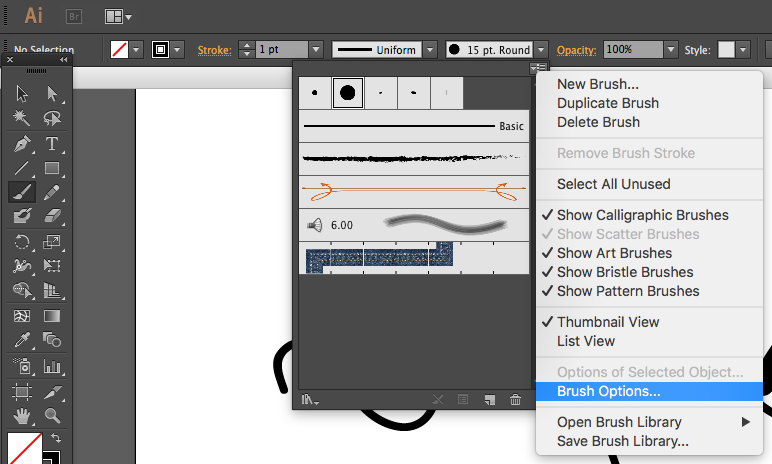
- Access Brush Options:
- Click on the brush size window
- Open the options menu (top right corner)
- Select “Brush Options”
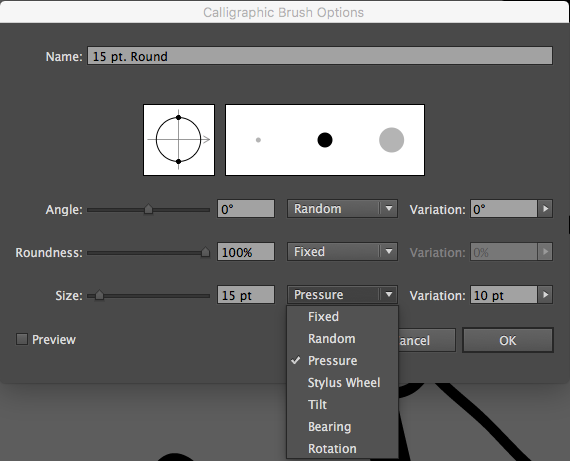
- Configure Pressure Settings:
- Change Size option to “Pressure”
- Set variation values (e.g., 10pt-50pt)
- Adjust other parameters as needed
- Create vector art with natural brush strokes!
Video Tutorial: How to configure pressure sensitivity in Illustrator
Illustrator on Windows
If you use VirtualTablet (WiFi/USB) with VirtualTablet Server on Windows, Illustrator receives pen pressure only in Tablet Driver Mode:
- Update VirtualTablet Server to the latest version
- Select Tablet Driver Mode: connect your tablet, open the Connect tab in VirtualTablet Server, and choose Tablet Driver Mode under Pen Input Mode (Windows only). Install the driver if VirtualTablet Server asks.
- Set the brush Size to “Pressure” as described above
In Pen Input API Mode, Illustrator draws every stroke at the same width. See Pen Input Modes for how the two modes differ.
If you use VirtualTablet: Bluetooth, update the app to the latest version. No extra setup is needed on the PC.
- “Pressure” is greyed out: check that Tablet Driver Mode is selected and VirtualTablet Server is running, then open Brush Options again.
- Tilt stays unavailable: Illustrator does not offer Tilt with VirtualTablet. Pressure works.
Pressure Is Available but Every Stroke Has the Same Width
Illustrator takes pen pressure from only one pen device: the one Windows set up first. Other drawing tablets, pen display apps and touchscreen laptops add pen devices of their own, and they stay installed even when you are not using them. If one of them was set up before VirtualTablet, Illustrator listens to that device, and your VirtualTablet strokes all come out at the same width even though the Pressure option is available. Photoshop and most other drawing apps are not affected.
To fix it, keep VirtualTablet as the only pen on your PC:
- Remove other pen tablet software that you don’t use with VirtualTablet. For example, EasyCanvas adds its own pen and touch screen devices to Windows, and they stay there even when EasyCanvas is closed. Uninstall it from Settings → Apps → Installed apps
- Disable pens you can’t uninstall, such as the built-in pen of a touchscreen laptop: open Device Manager, expand Human Interface Devices, right-click the other HID-compliant pen entries and select Disable device. You can turn them back on the same way
- Restart Illustrator. It checks the pen devices only when it starts
With VirtualTablet: Bluetooth, Windows adds the pen again every time the tablet reconnects. If pressure stops working after a reconnect, restart Illustrator.
Adobe Animate (Flash)
Enable pressure support in Animate:
- Select the Brush Tool in the tools panel
- Enable Pressure Option:
- Look for “Use Pressure” in the tool options
- Toggle it ON
- Animate with pressure-sensitive strokes!
Video Tutorial: How to configure pressure sensitivity in Flash
Common Issues and Solutions
- Inconsistent pressure: Check if Windows Ink is enabled (Windows users)
- Brush not changing size: Verify “Pen Pressure” is selected in brush dynamics
- Illustrator draws at one width (Windows): Switch VirtualTablet Server to Tablet Driver Mode, see Illustrator on Windows
- Illustrator offers Pressure but the width never changes (Windows): remove or disable other pen devices, see Pressure Is Available but Every Stroke Has the Same Width