Input Modes: Graphic Tablet Mode vs Mouse Mode
VirtualTablet: Bluetooth supports two main input modes:
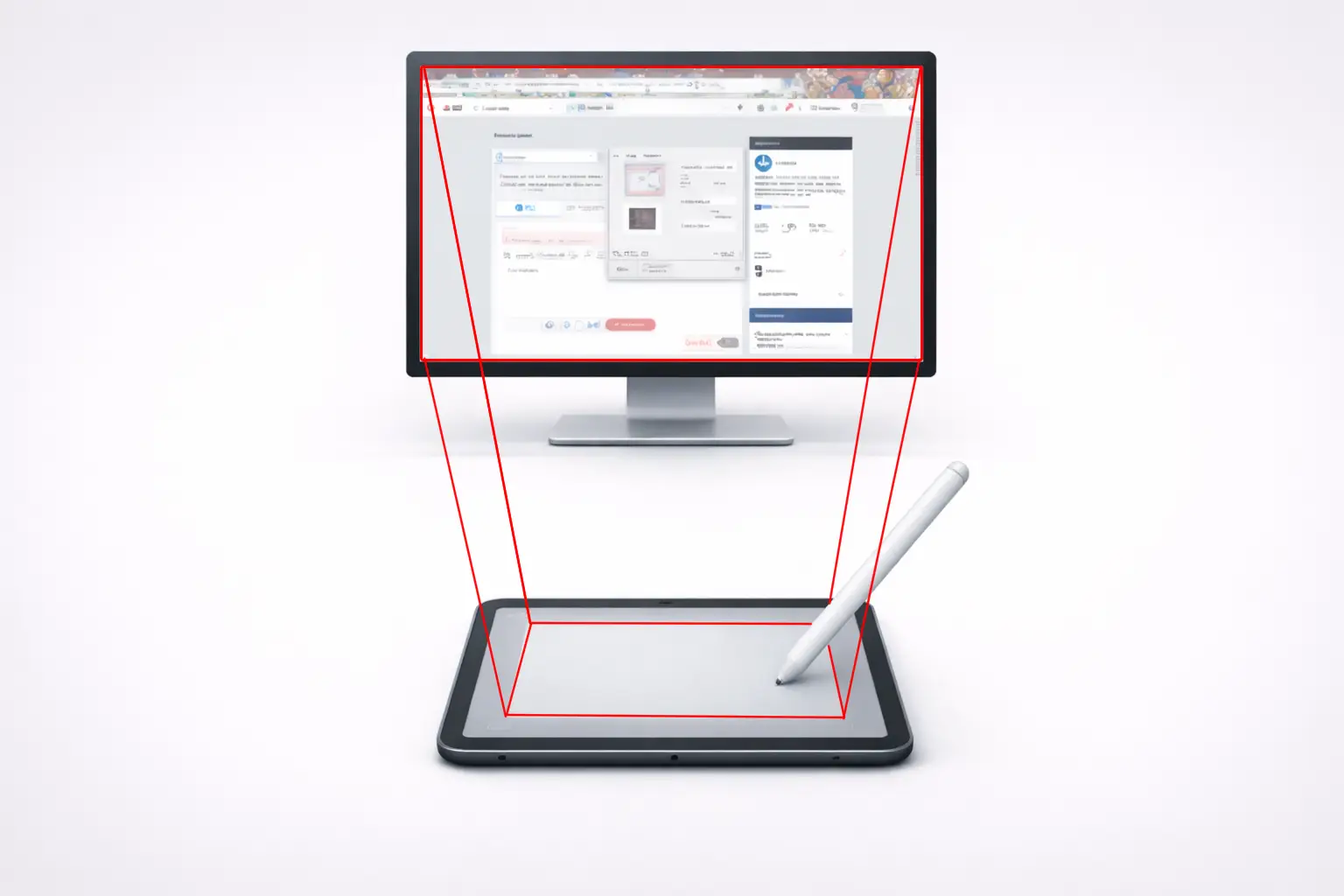
- Graphic Tablet Mode uses the absolute position of your finger or stylus inside the drawing area, like a traditional pen tablet such as a Wacom tablet
- Mouse Mode uses relative movement, which feels closer to a trackpad or mouse
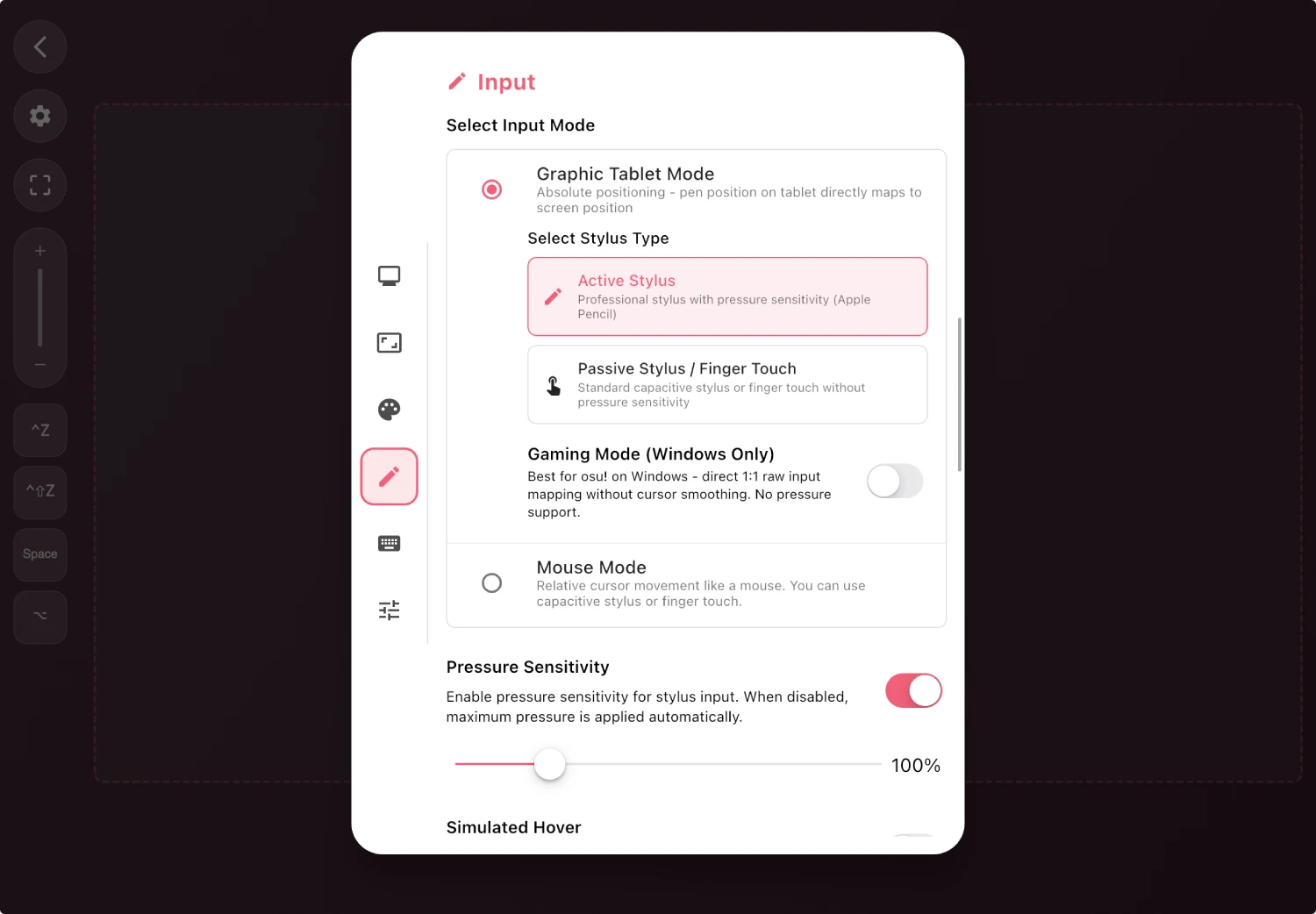
Graphic Tablet Mode
Graphic Tablet Mode is designed to behave like a traditional drawing tablet.
How it works
- Input is mapped to an exact location on the target display
- The tablet surface acts like a pen input area for your computer
- The cursor or pen position jumps directly to the touched location
Best for
- Drawing
- Handwriting
- Precise brush control
- Pressure-sensitive pen workflows
Good to know
- This is usually the best mode when using an active stylus such as S Pen or Apple Pencil
- If you are using your finger or a passive stylus, you can still use Graphic Tablet Mode, but pressure sensitivity is not available
- On Windows, if you use multiple monitors, you may also need to configure the target display in Monitor Selection
Mouse Mode
Mouse Mode is designed for relative cursor movement.
How it works
- The cursor moves based on how far you move your finger or stylus
- The starting touch position does not map to a fixed screen location
- This feels closer to using a trackpad or a regular mouse
Best for
- General cursor control
- Navigating desktop apps
- Users who want a more familiar laptop trackpad-style feel
Good to know
- If you expected Magic Trackpad-like behavior, this is the mode you should try first
- Mouse Mode is better for pointing and navigation than for pen-tablet style drawing
Comparison
| Feature | Graphic Tablet Mode | Mouse Mode |
|---|---|---|
| Positioning | Absolute | Relative |
| Feels like | Drawing tablet | Trackpad or mouse |
| Cursor behavior | Jumps to the touched location | Moves from the current cursor position |
| Best use | Drawing and handwriting | Navigation and pointer control |
| Pressure support | Yes, with supported active stylus | Depends on workflow, but this is not the main drawing mode |
Which Mode Should You Choose?
Choose Graphic Tablet Mode if you want:
- Natural pen-tablet behavior
- Better drawing precision
- Direct screen mapping
Choose Mouse Mode if you want:
- More familiar trackpad-style cursor movement
- Easier desktop navigation
- Relative movement instead of absolute mapping
ℹ️
Using your finger or a capacitive stylus instead of an active pen? Switch to
“Graphic Tablet Mode with Passive Stylus” if you want screen-mapped absolute input without pressure sensitivity.