Connection Issues
Having trouble connecting your devices? Find solutions to common Bluetooth pairing and connection problems here.
Status Does Not Show ‘Ready to Pair/Connect’
Before you can pair and connect, the app status should display Ready to Pair/Connect.
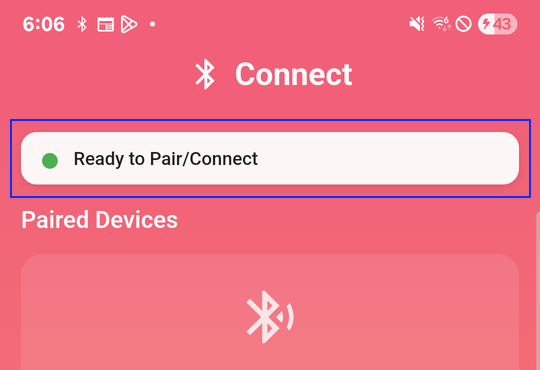
🟢 Green: Normal operation - everything is working correctly
🟡 Yellow / 🔴 Red: Abnormal status - there’s an issue that needs attention
Why this happens:
Android only allows one app at a time to function as a Bluetooth HID (Human Interface Device). If another app is using this feature, VirtualTablet: Bluetooth cannot work correctly.
Solution:
- Close any Bluetooth keyboard/mouse apps, even if they’re running in the background
- Examples: Bluetooth Keyboard & Mouse, Bluetouch, Bluetooth Remote, BT Remote, etc.
- If the issue persists, some apps don’t properly release Bluetooth HID when closed:
- Uninstall other Bluetooth input apps, or
- Restart your device and launch VirtualTablet: Bluetooth first
- You should now see ‘Ready to Pair/Connect’
Cannot Pair Between Mobile Device and PC
Quick fixes:
- Turn Bluetooth off and on again on both devices, then retry pairing
- Restart both devices and try pairing again
For Windows users - Advanced troubleshooting:
If the above steps don’t work:
- Open Device Manager
- Locate and remove the Bluetooth Adapter device
- Restart your computer (it will reinstall Bluetooth Adapter device)
- Try pairing again
Connection Failure
For Linux Users
For Ubuntu 25 and newer, you don’t need to do anything - it just works.
But for older Ubuntu releases (20~24), you need to check Bluez configuration.
-
Step 1 — Enable HID plugins in BlueZ
sudo nano /etc/bluetooth/main.conf-
Add:
[General]
Enable=HID
Experimental=true
-
-
Step 2 — Restart Bluetooth
sudo systemctl restart bluetooth -
Step 3 — Load HIDP (classic HID) kernel driver
sudo modprobe hidp-
Persistent load:
echo hidp | sudo tee -a /etc/modules
-
-
Step 4 — Repair/pair your device
Connection Timeout
Why this happens:
If you paired your devices before running VirtualTablet: Bluetooth, your PC may not recognize that your mobile device has tablet input capability. The system can only detect this while the VirtualTablet: Bluetooth app is actively running.
Solution:
- Remove the paired device from both your Android device and PC
- Launch the app and wait until you see ‘Ready to Pair/Connect’ in the status bar
- Pair your devices again
- Try connecting
Connection Successful but Cursor Doesn’t Move
If your devices are connected but the cursor isn’t responding:
- Remove the paired device from both your Android device and PC
- Turn Bluetooth off and on for both devices
- Launch the app and wait until you see ‘Ready to Pair/Connect’ in the status bar
- Pair your devices again
- Test cursor movement